# EA Shortcut
***To create a shortcut, you must have Enterprise Architect installed and be connected to the EA repository.***
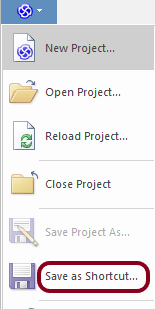
If we have managed to connect to the repository and have an open project, click on the EA icon in the upper left corner [](https://doc.eainfoport.cz/uploads/images/gallery/2022-04/ea.png)
[](https://doc.eainfoport.cz/uploads/images/gallery/2022-04/ea1.png)
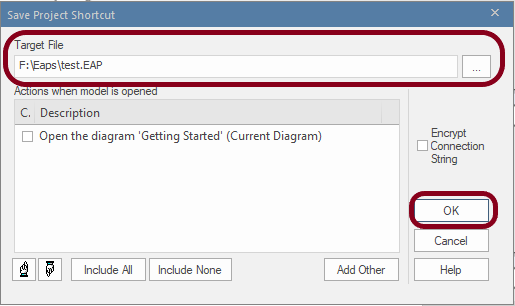
Click on ***Save as Shortcut***... select the path and click OK.
(we recommend saving the path to your history clipboard using ctrl+c and opening the file beforehand to see if it redirects you to the repository)
[](https://doc.eainfoport.cz/uploads/images/gallery/2022-04/project.png)
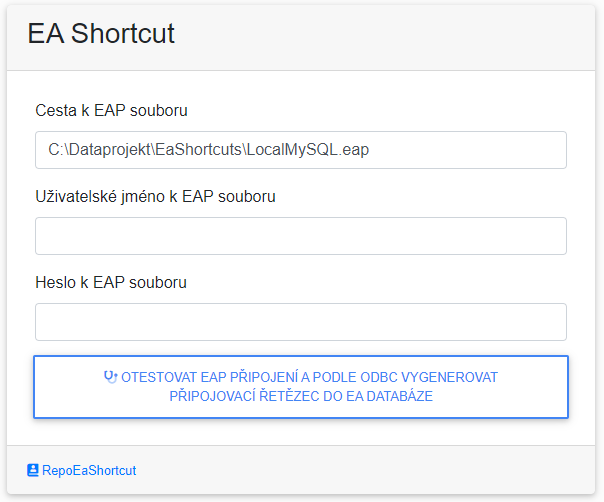
Now, in the EA Shortcut configuration, enter the path to the EAP file and the user with the password to the repository, if security is enabled. The generate button is optional.
[](https://doc.eainfoport.cz/uploads/images/gallery/2022-04/shortcut.png)
(If your EA database is MySQL or PostgreSQL, you use ODBC to connect to EA. You can use the blue bordered button to generate a connection string to your database).
One of the problems when connecting to a repository can be that the shortcut was created from a cloud connection (and not a database connection).