Installation and Configuration of ODBC Driver
If you have installed a MySQL database (according to one of the previous chapters), continue with the ODBC configuration.
For other options, see Connecting to the EA Repository Database "Native Connection".
For EaInfoport to work, Enterprise Architect needs to have data saved in a relational database (not just in .eap file).
ODBC drivers are required to connect Enterprise Architect and the database. They are freely available for all supported database types.
Below is a detailed procedure for MySQL, for other databases the procedure is similar.
ODBC Installation for MySQL
- Download the installation file for the 32-bit version from the 5.x.x series from https://downloads.mysql.com/archives/c-odbc/. So currently mysql-connector-odbc-5.3.13-win32.msi.
Save the file, for example, to the folder C:\EAInfoport - Start the installation, confirm the licence, complete the installation
Delete the installation file
ODBC Configuration for MySQL
- Start the ODBC connection management application “ODBC Data Sources (32-bit)”
- Switch to the User DNS tab (attention: important!)
- Add a new Data Source type “MySQL ODBC 5.3 ANSI Driver”
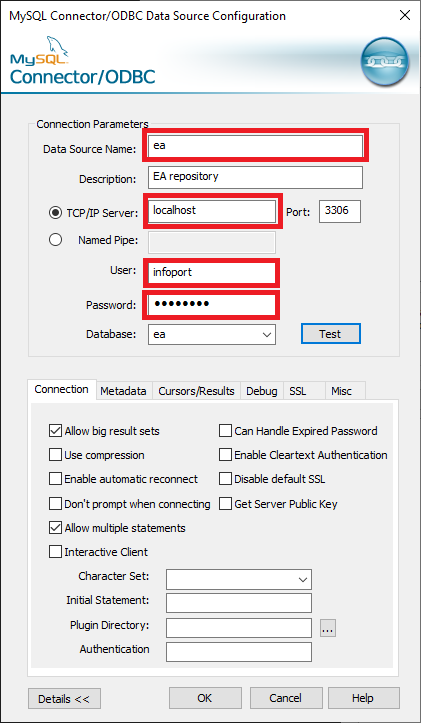
- Fill in the connection parameters according to the following pattern (and according to the values you entered when installing the MySQL database), and do not forget the Detailed Settings
- Data Source Name = ea
- TCP/IP Server = localhost
- User = infoport
- Password = P@ssw0rd
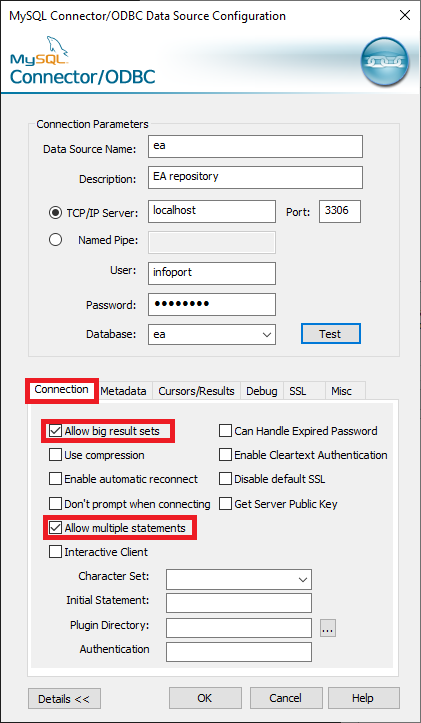
Connection tab
- Check Allow big result sets
- Check Allow multiple statements
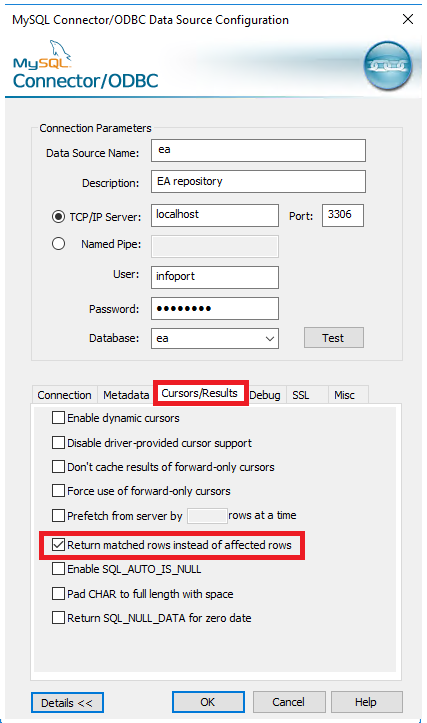
Cursors/Results tab
- Check Return matched rows instead of affected rows
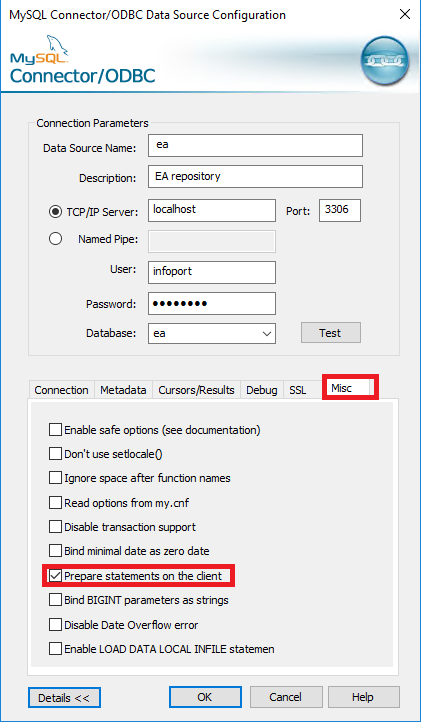
Misc tab
- Check Prepare statements on the client
- Save the settings
- Now you can close the ODBC Data Source Administrator application (32-bit)