# Management of Own User Account
Users of the portal can adjust the details of their account, set the language in which they want to have the user interface of the portal and other details.
The “User Settings” function is used for this purpose.
To open the user settings, it is necessary to click on the tab with the user name.
After clicking on the tab with the username, the form for editing the profile will be displayed.
# User Settings
[](https://doc.eainfoport.cz/uploads/images/gallery/2022-09/welcome-en.png)
After clicking on the tab, the user will see the user settings.
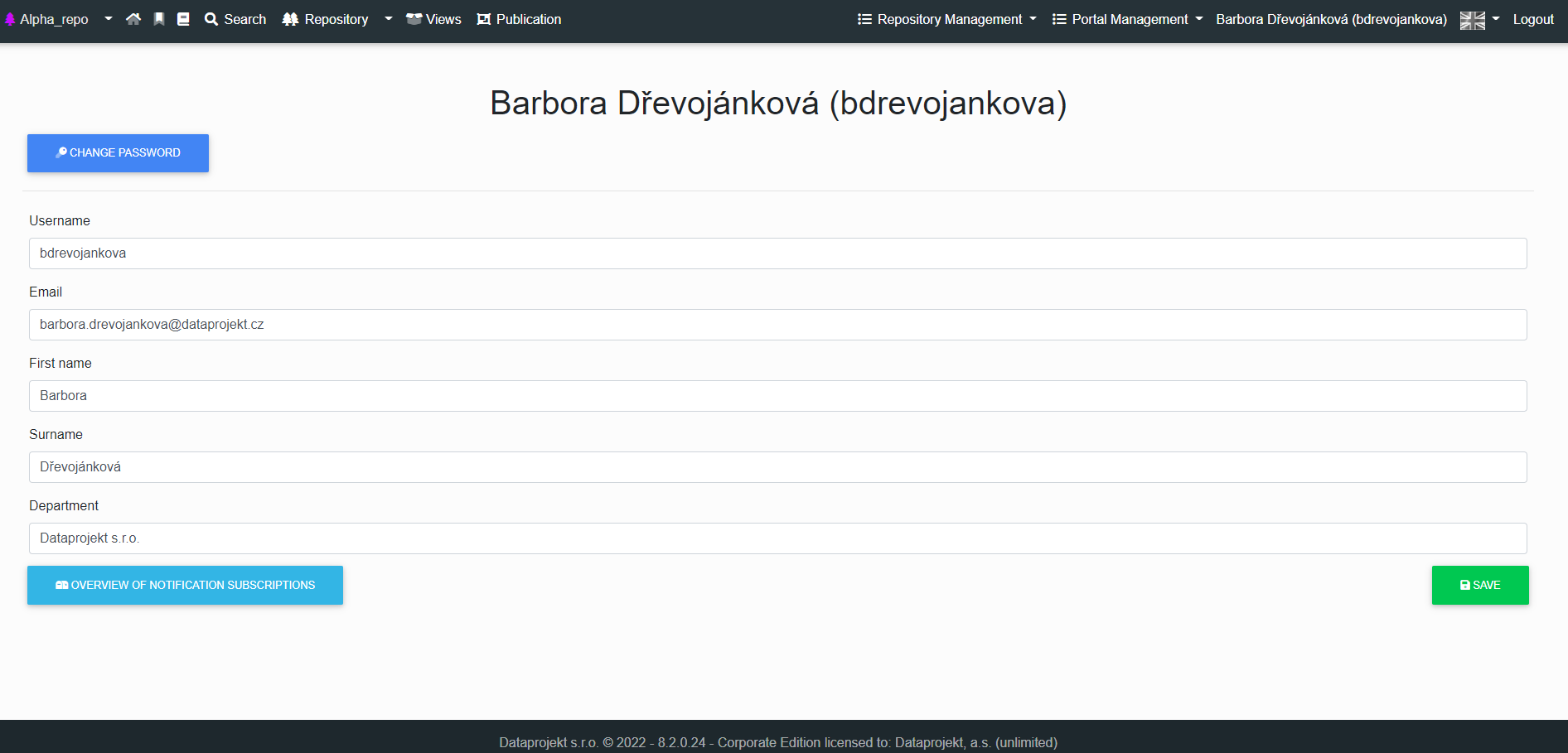
After clicking on the “Profile” tab, a user can change username, email, first name, last name, department and set up an alert subscription summary..
Changes will be saved after filling out the form and then clicking on the “*Save*” button.
[](https://doc.eainfoport.cz/uploads/images/gallery/2022-09/uzivatelske-nastaveni-en.png)
# Selection of Preferred Language
Under the flag, you can choose the language of the application.
You can choose from 2 application languages by clicking on the flag icon:
- Czech language
- English language
The choice of language only applies to the translation of the user interface, not to the actual content of the repositories. Changing the language only affects a specific user, i.e., different users may have different UI settings.
[](https://doc.eainfoport.cz/uploads/images/gallery/2022-05/language.png)
After clicking on the appropriate icon, the changes will be saved immediately.
# Changing the Password
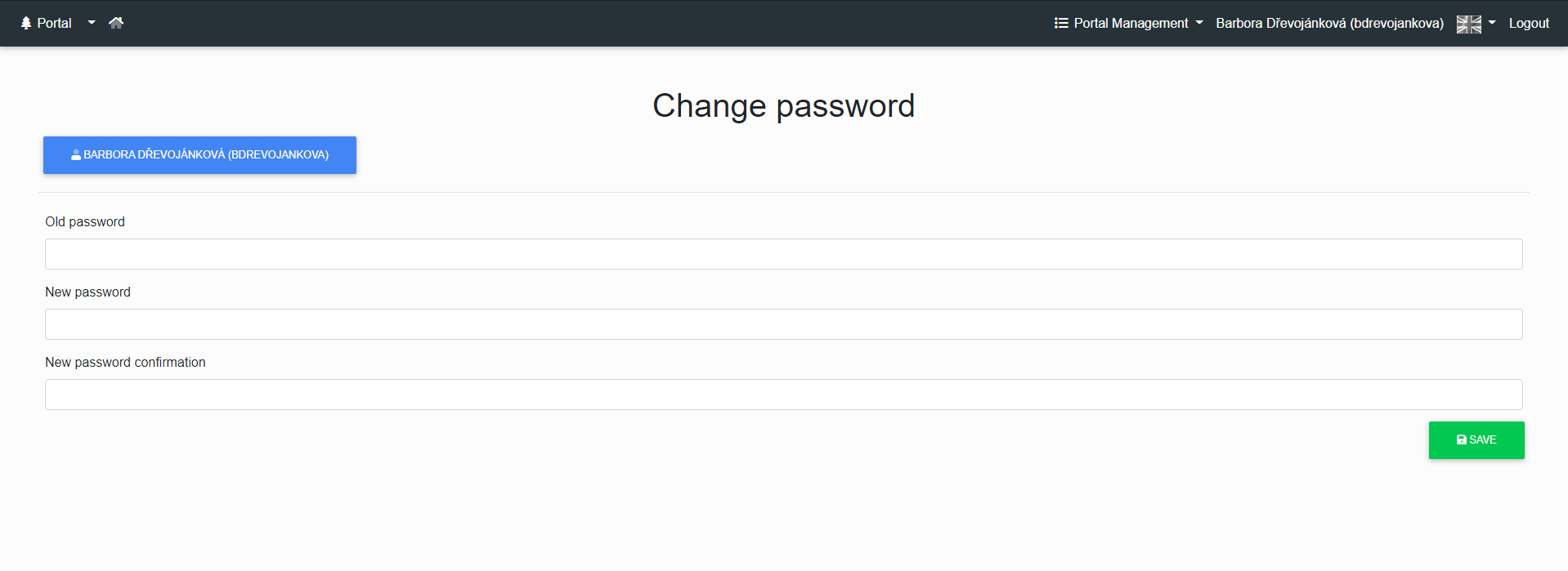
In this form, the user has the option to change their password.
At the moment, there are no enforced rules for the new password, neither for the strength of the password nor for its expiration. If such rules need to be enforced, the portal needs to be connected to LDAP / Active Directory, which allows password rules to be enforced.
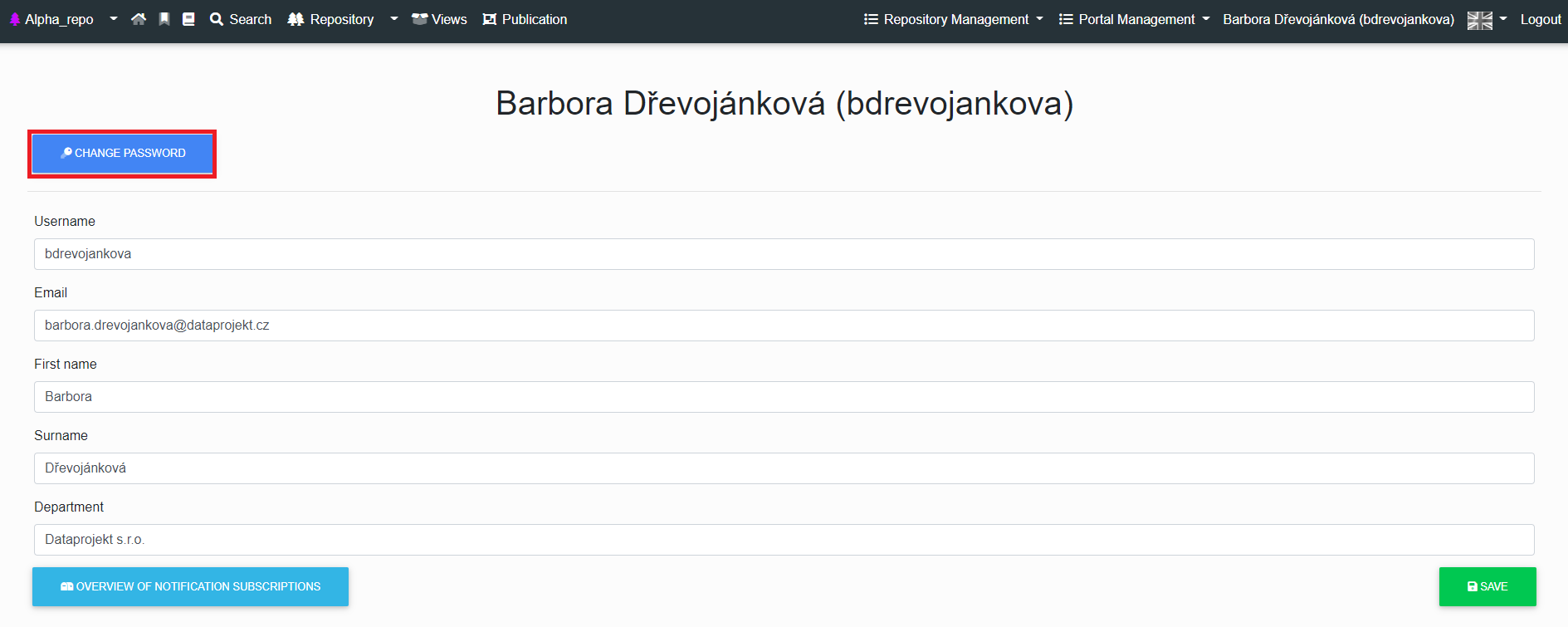
To change the password, a user clicks on the “*Change Password*” tab, fills in the old password and then the new one and finally clicks on the “*Save*” button.
The (portal or repository) administrator can also change passwords for other users.
[](https://doc.eainfoport.cz/uploads/images/gallery/2022-09/change-password1.png)
[](https://doc.eainfoport.cz/uploads/images/gallery/2022-05/password.png)
# Overview of notification subscriptions
The administrator must set up an [e-mail server](https://doc.eainfoport.cz/books/installation-manual/page/75-setting-an-email-notification-server) in Configuration Manager to send notification e-mails to users.
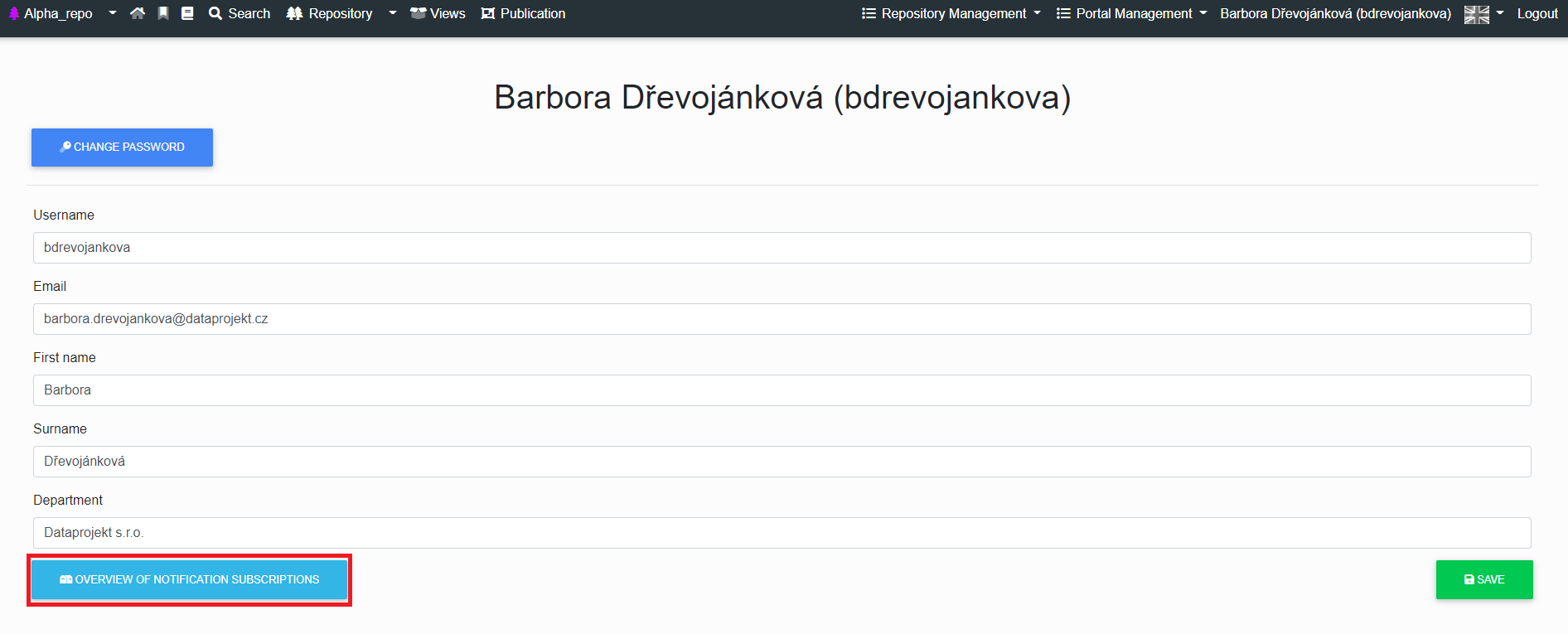
If a notification system is set up, then in this section the user can see all their set notifications.
[](https://doc.eainfoport.cz/uploads/images/gallery/2022-09/notification.png)
- - - - - -
Click on the icon [](https://doc.eainfoport.cz/uploads/images/gallery/2022-09/button-of-notification.png) to see a ***Overview of Notification Subscriptions***.
[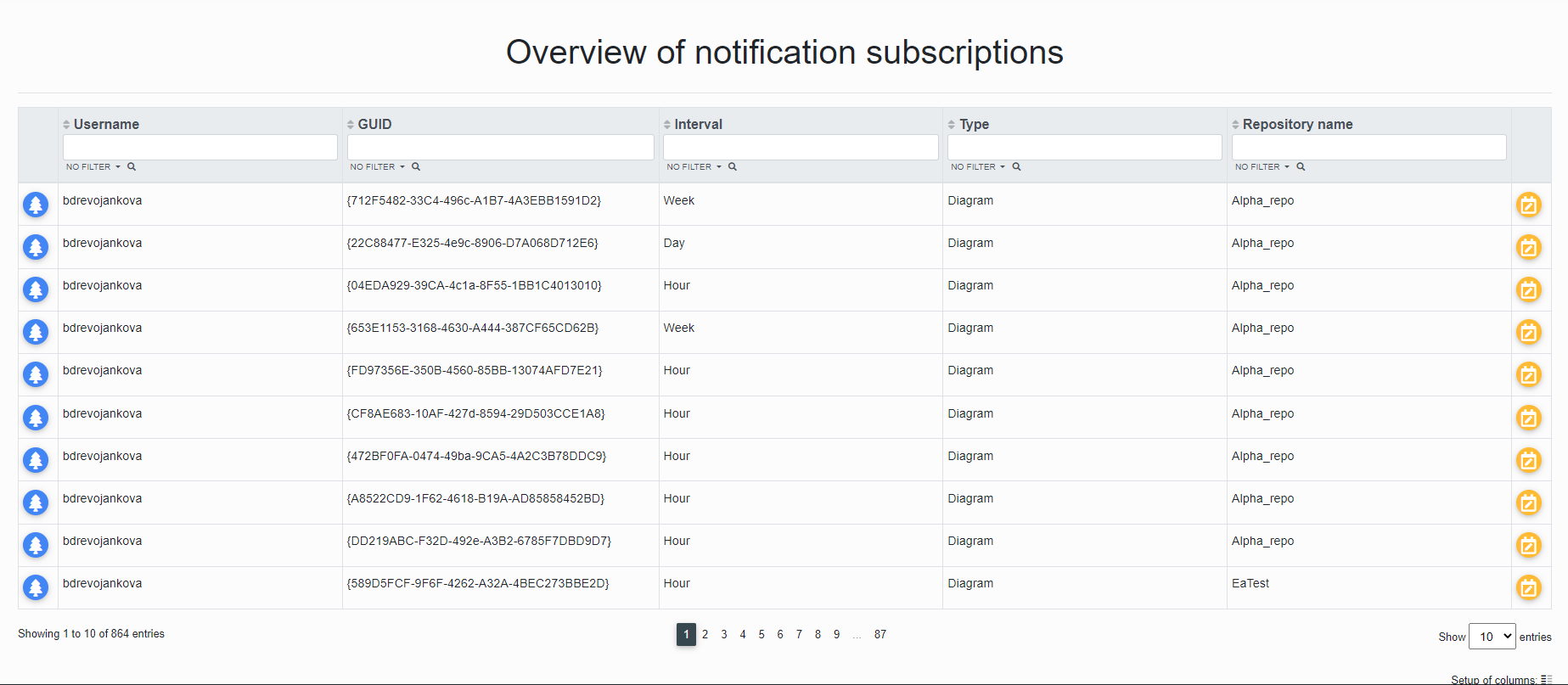](https://doc.eainfoport.cz/uploads/images/gallery/2022-09/prehled-notification.png)
- - - - - -
The user can click on the "*Tree*" icon or the "*ChangeNotificationType*" button.
[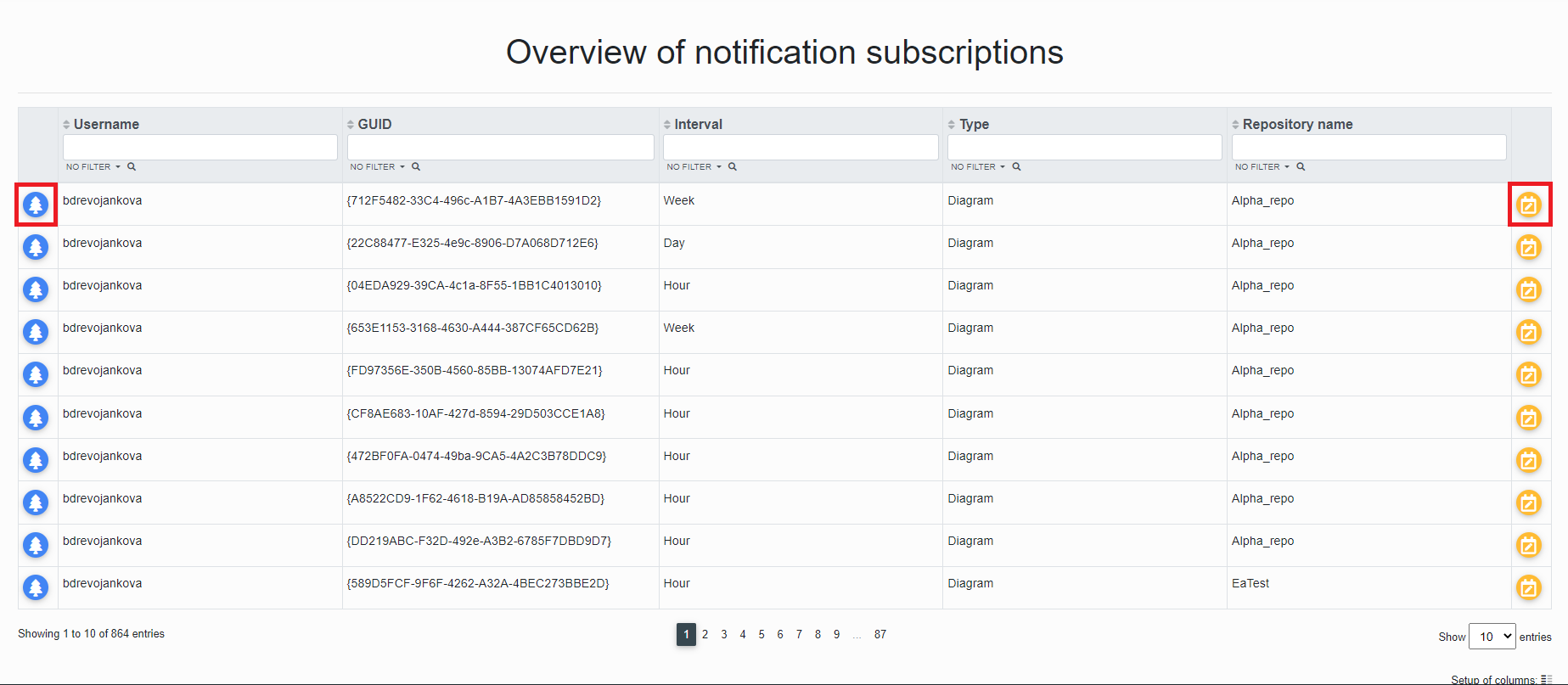](https://doc.eainfoport.cz/uploads/images/gallery/2022-09/prehled-notification11.png)
After clicking the *"ChangeNotificationType*" button, the user is redirected to the "*Diagram Subscriber Notification Interval Settings*" page where they can check the Name, Type, Login Name and Email to which the notification is sent.
[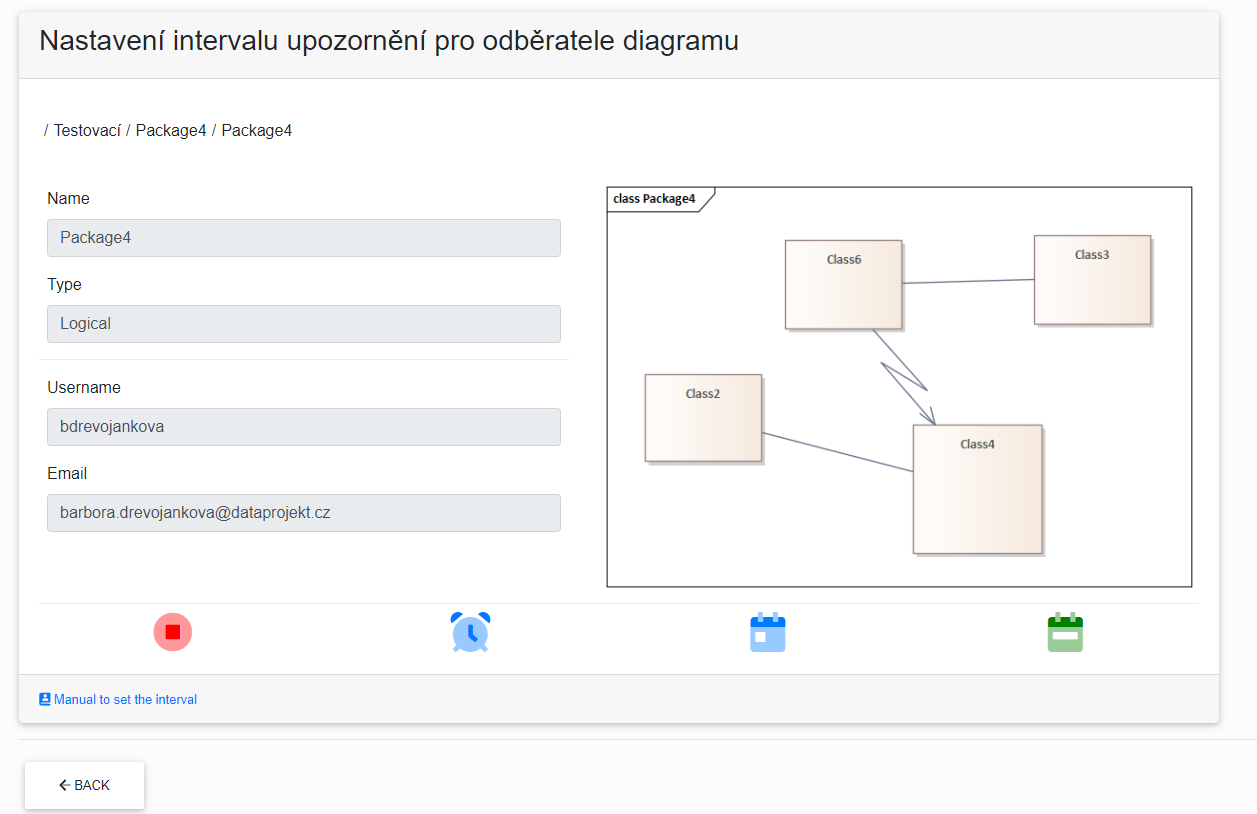](https://doc.eainfoport.cz/uploads/images/gallery/2022-09/nastaveni.png)
- - - - - -
There are three notification services that alert users of changes to the diagram.
- [Notification Hour Job](https://doc.eainfoport.cz/books/installation-manual/page/751-notification-hour-job)
- [Notification Day Job](https://doc.eainfoport.cz/books/installation-manual/page/752-notification-day-job)
- [Notification Week Job](https://doc.eainfoport.cz/books/installation-manual/page/753-notification-week-job)
By hovering the cursor over the icons, the user can read what type of notification it is.
[](https://doc.eainfoport.cz/uploads/images/gallery/2022-09/ikonky-upozorneni.png)
- - - - - -
You can easily change the notification type either on this page, where you just click the blue icon, or go to the repository of the diagram.
[](https://doc.eainfoport.cz/uploads/images/gallery/2022-09/zelene1.png)
The green colour of the icon informs which notification type is on.
If the user wants to cancel the notification, just click the red icon.
- - - - - -
The "Back" button returns the user to the "Overview of Notification Subscriptions" list.
- - - - - -
When the user clicks on the "*Tree*" [](https://doc.eainfoport.cz/uploads/images/gallery/2022-09/stromecek-11.png) icon, he is redirected to the repository of the diagram.
[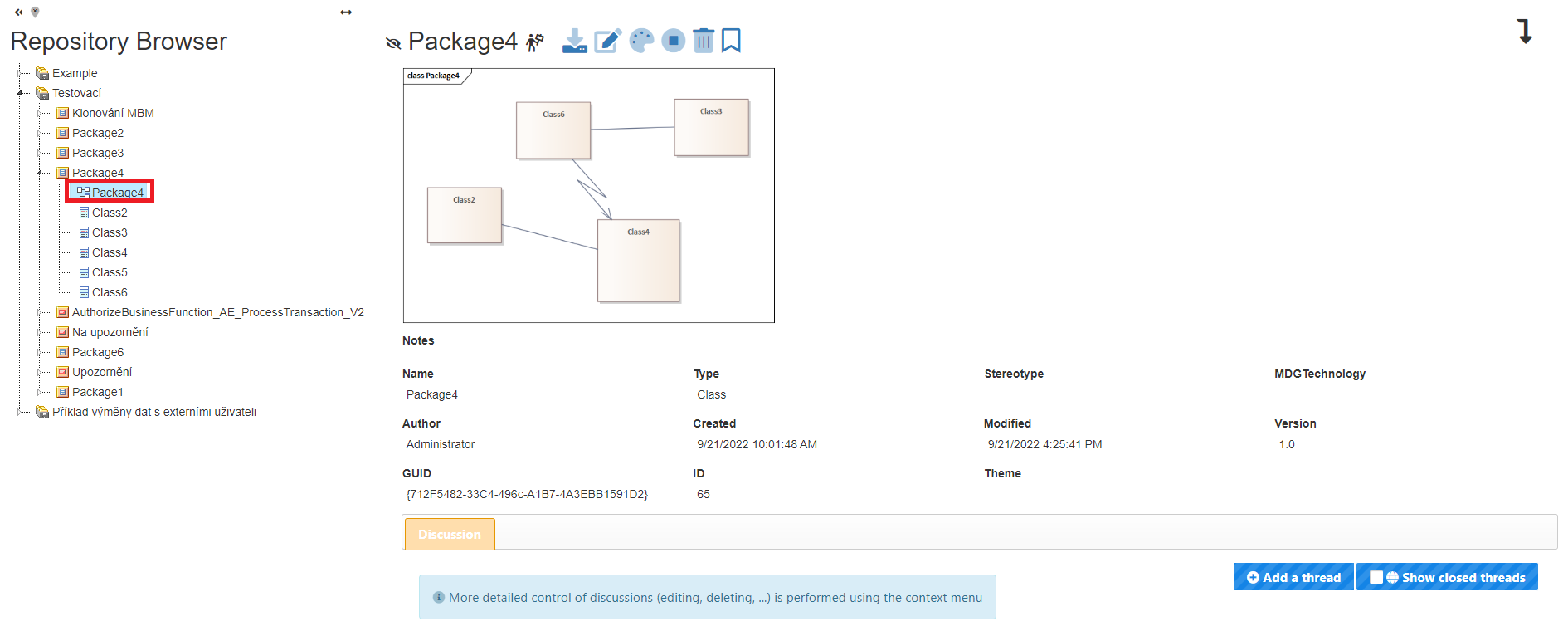](https://doc.eainfoport.cz/uploads/images/gallery/2022-09/repo.png)