# User interface description
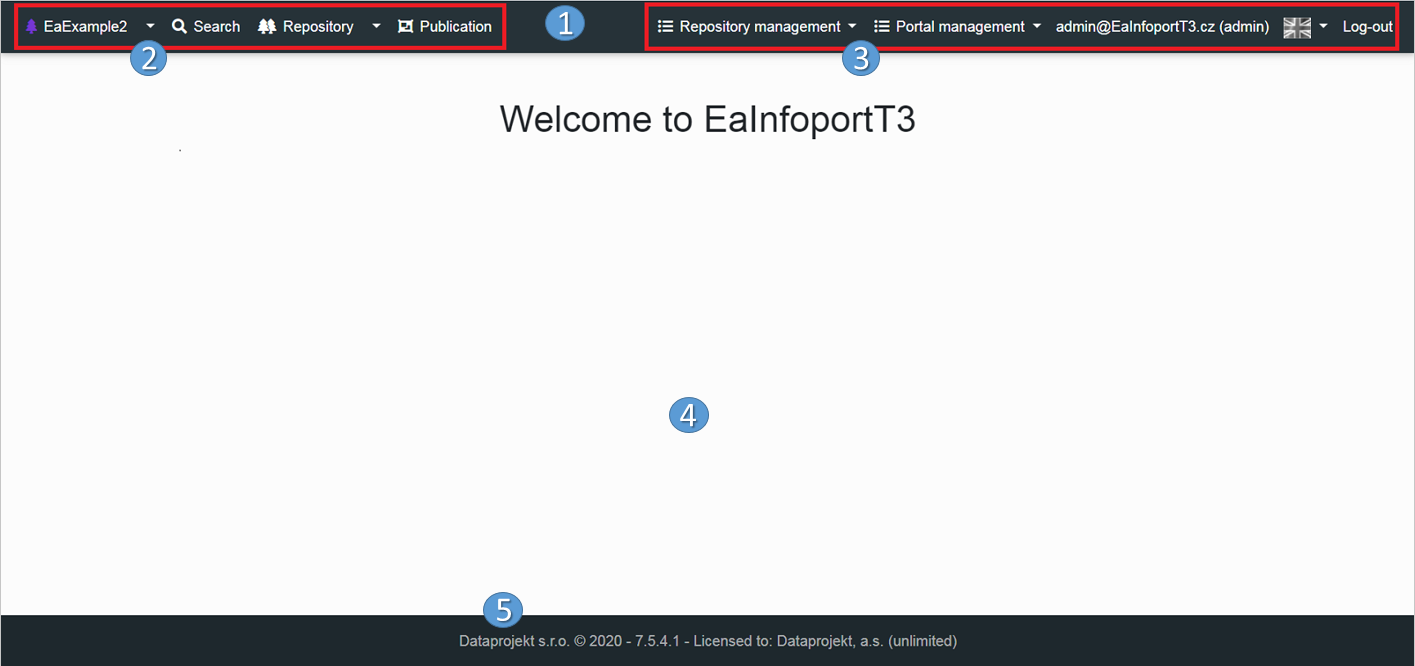
Once the user successfully logs in, the following screen will be displayed:
[](https://doc.eainfoport.cz/uploads/images/gallery/2022-05/4Ow1.png)
This screen consists of several sections:
1. *Basic menu* – this bar, at the top of the screen, contains access to basic functions. It is usually always displayed and its appearance may change depending on the permissions of the user (both general permissions and permissions on the currently selected repository (see later in this document)).
2. *Main menu – working part*. This section of the main menu contains commands that are typically used for the user's normal work. Thus, for example: changing the repository, displaying the contents of the currently selected repository, displaying the publishing module, etc.
3. *Main menu – settings and administration*. In this section of the main menu, functionalities are available, which typically relate to user settings, portal administration (according to authorisation), user logout from the portal, etc.
4. *Main area *– in this space – information, diagrams and other data are displayed, depending on which command from the main menu was used by the user (and this which functionality was started).
5. *Footer* – contains various data, such as portal version, licence type, licence holder, link to the portal manufacturer, etc.
The individual elements of the basic user screen will be further described in this document, within the related functionalities.